 Mock Location
How to check that location spoofing works
Spoofing is on, the green button is lit — but does it actually work? Checking in the app itself is useless: it shows the chosen point in any case. You can only verify it from the outside, through the eyes of another app. Below are five checks in increasing strictness and what each failed result means.
Make sure spoofing is running
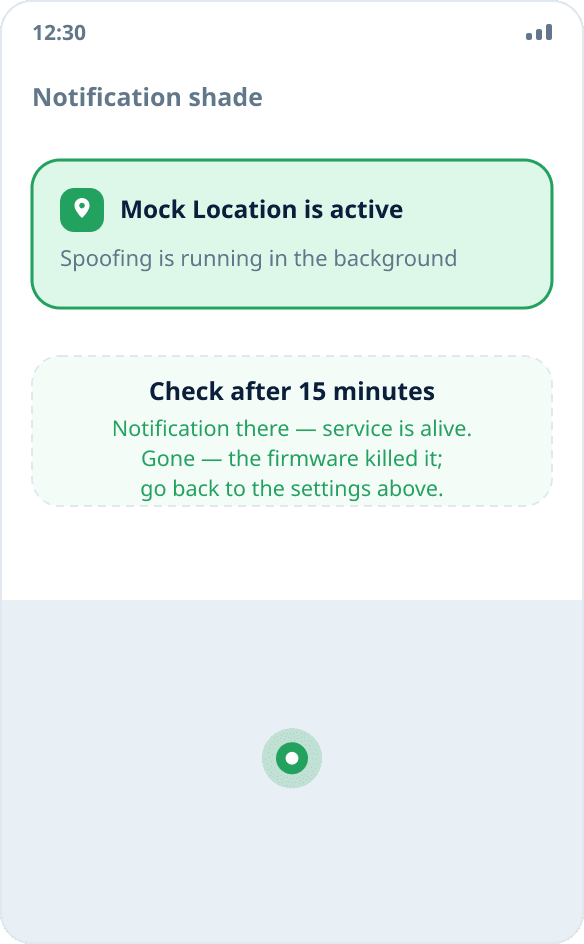
There are two signs, both visible without opening settings: the round power button in the app is green, and a persistent background notification is in the notification shade. No notification means the system has closed the background service, and there is nothing to check yet.
Open a location check page in the browser
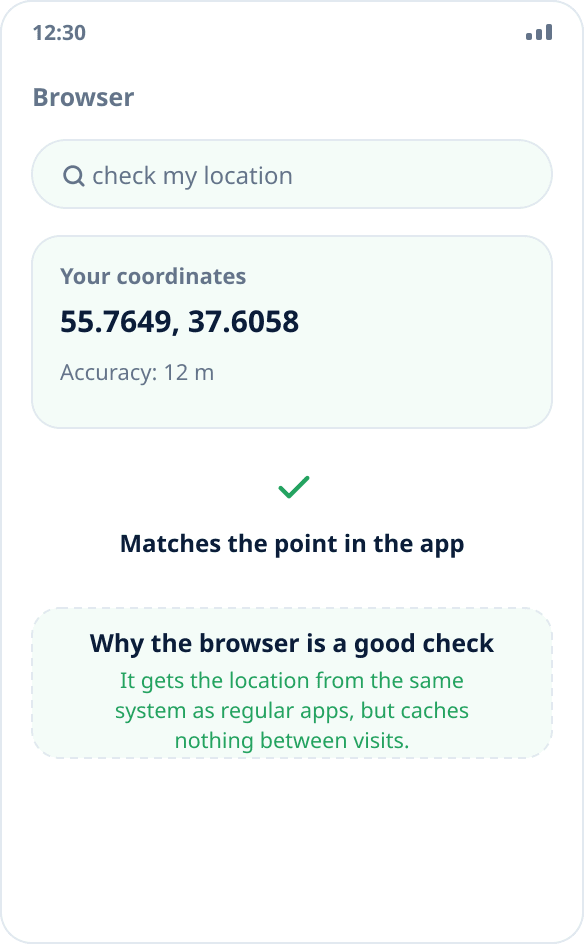
The fastest and most honest check. Any page that detects location (searching for “check my location” finds dozens) asks the same system for coordinates as regular apps do. Allow access and compare the coordinates shown with the chosen point — if they match, spoofing works.
The advantage of the browser is that it does not keep your previous point between visits and does not show an old result by mistake.
Check in another map app
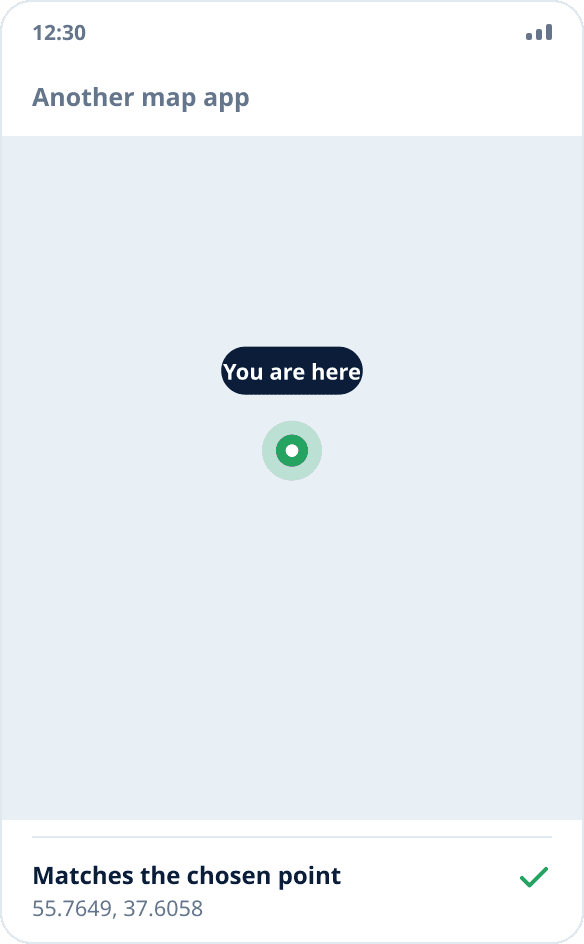
Open any map app and tap the “where am I” button. It should show the chosen point. If the app was already open before spoofing was turned on, close it completely and launch it again: almost all maps keep the last known location in memory and show it until they get a new one.
Compare with a weather app
Weather is a good control check because it asks for the location rarely, usually at launch. Restart the weather app with spoofing active: the city should change to the one where your point is. If the city stays the same, the app either remembers it as manually chosen or determines the region by IP address — spoofing does not affect that.
Check that spoofing holds
Leave the phone alone for 15–20 minutes with the screen off, then look at the shade. If the notification is there, the service is alive and spoofing keeps working. If the notification is gone, the firmware killed the background service, and this is fixed not by checks but by background settings: Xiaomi, Samsung, Huawei, realme, OPPO and vivo.
The coordinates do not match — what to check, in order
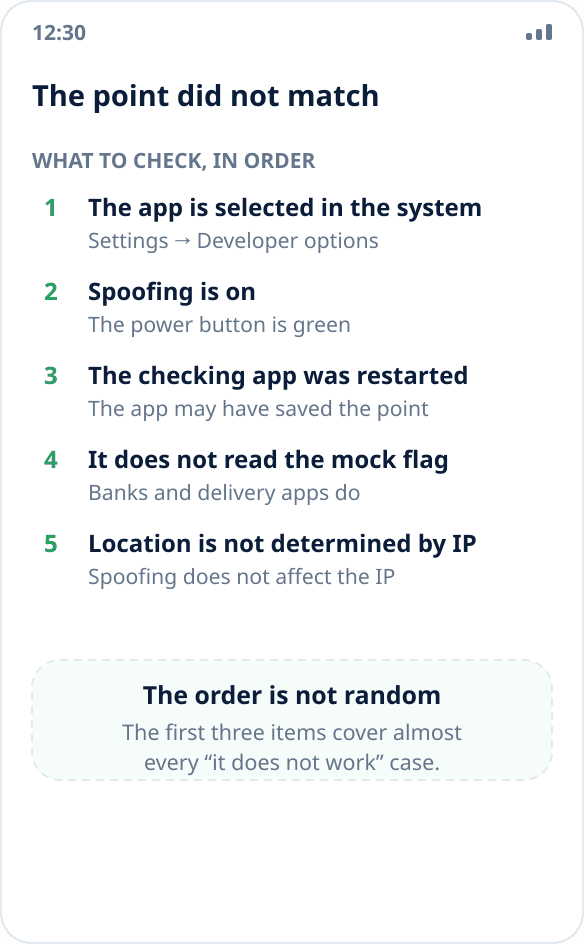
First: the app is actually selected in the system. Settings → “Developer options” → “Select mock location app” — it should say Mock Location, not “None”. The setting is reset when the app is reinstalled and sometimes after major firmware updates.
Second: spoofing is on, not just the app open. The point is set by tapping the map, and the button turns green.
Third: the checking app was restarted after spoofing was turned on — otherwise it shows a saved point.
Fourth: the app reads the mock source flag and deliberately ignores such coordinates. Banks, delivery and corporate tracking systems work this way — it is not a malfunction but their deliberate decision.
Fifth: the app determines location by IP address rather than through the system. Spoofing coordinates does not affect that channel — the difference is explained in the article location spoofing or VPN.
Why you cannot check in the app itself
A spoofing app draws the point you chose regardless of whether the system accepted it. It shows your intention, not the result. The only way to see the result is to ask a third-party consumer of coordinates — any other app or the browser.
For the same reason it is pointless to judge success by the address in the hint at the top: the address is obtained by a geocoder from the chosen coordinates and appears even with spoofing completely off.
Accuracy and “jumping” points
After spoofing is turned on, other apps do not update the location instantly: each has its own polling interval, from seconds to minutes. If the map showed the old point and moved to the new one half a minute later, that is normal operation, not a failure.
A separate case is apps with filtering: they smooth the track and ignore an instant jump of hundreds of kilometers as impossible. This behavior occurs in navigation and fitness trackers; restarting the app usually settles it.