 Mock Location
Mock location on Samsung Galaxy
Samsung uses the same built-in Android mechanism, but with its own names and locations: the build number is one level deeper than on stock Android, the developer section appears at the very bottom of the main list, and background work is controlled not by “battery saver” but by “background usage limits”. Below is the whole path, taking these differences into account.
Find the build number in “Software information”
Settings → “About phone” → “Software information” → tap “Build number” seven times in a row. This extra subsection is what trips people up: on stock Android the build number is right in “About phone”, while One UI hides it deeper. The system shows a countdown, then asks for your PIN and reports that developer mode is on.
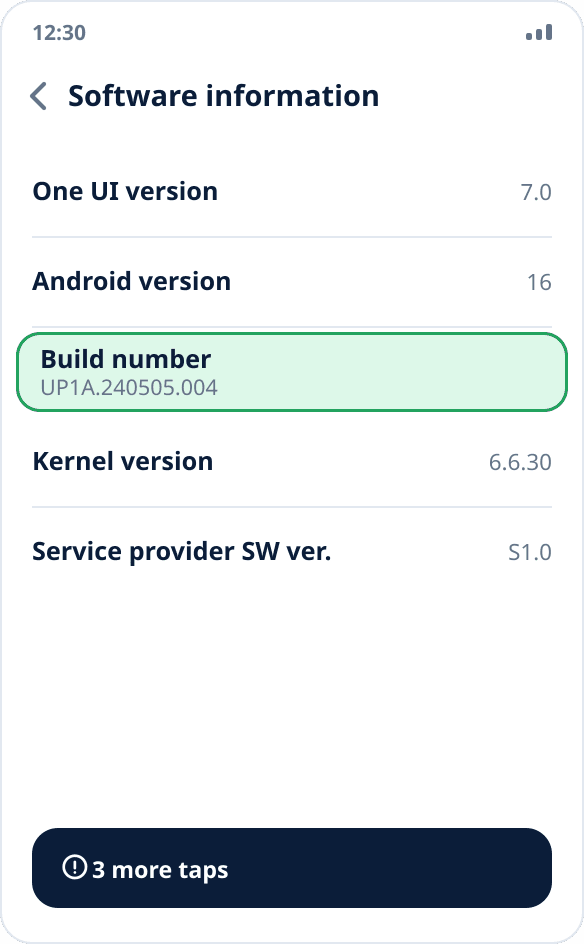
Open “Developer options”
Return to the top level of settings and scroll to the very bottom: on One UI the new section is called “Developer options” and is added as the last item, not inside “System” as on many other skins. If it is not there, the seven taps did not count — repeat step 1, tapping exactly on the “Build number” item.
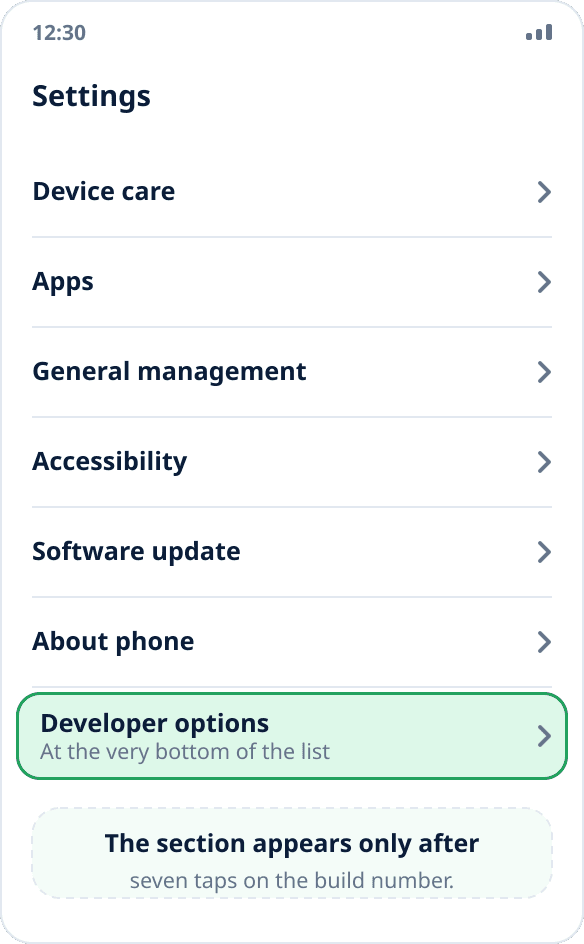
Select the mock location app
Inside the section find the “Select mock location app” item and choose Mock Location. The system builds the list, and it is empty for exactly one reason — a suitable app is not installed yet. There is a separate guide on installing an APK outside a store.
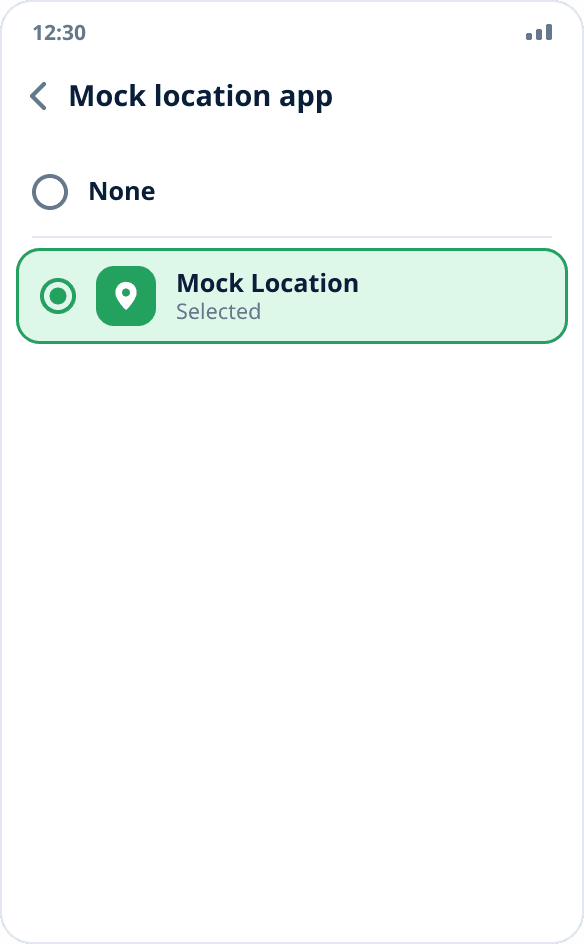
Remove background usage limits
Settings → “Device care” → “Battery” → “Background usage limits” → add Mock Location to the “Never sleeping apps” list. On some versions the section is called “Sleeping apps” — there, on the contrary, the app must be removed. Without this One UI will eventually put the background service to sleep and spoofing will stop — just as it happens on Xiaomi.
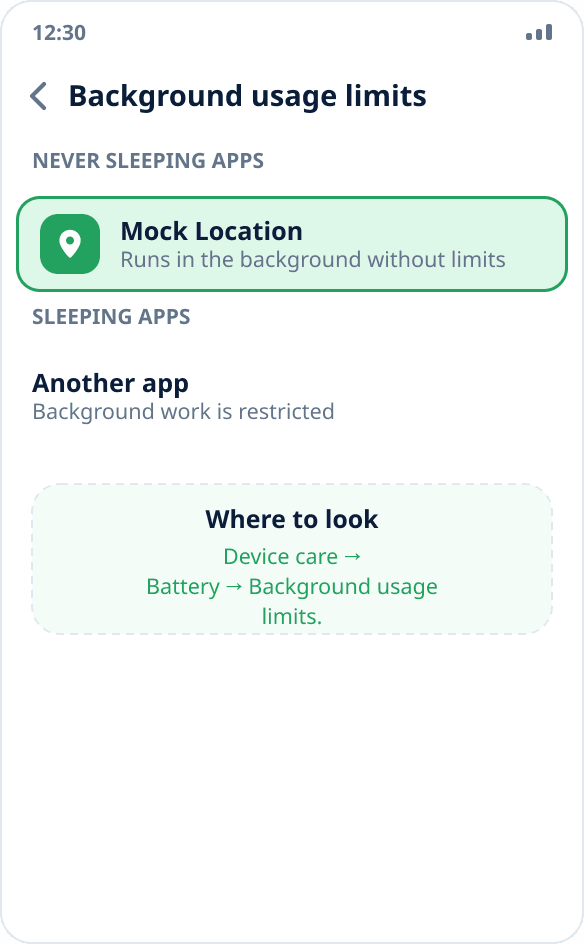
Start spoofing and check it
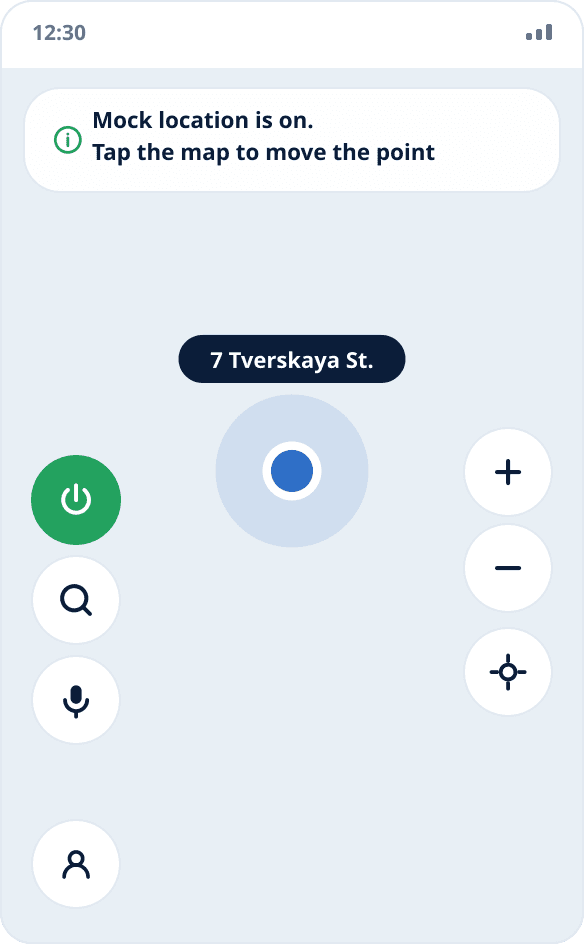
Open the app, grant location and notification access and tap the place you need on the map — spoofing starts right away. Then open any other app with a map and make sure it shows the chosen point.
How Samsung differs from other skins
There are three differences, and all are about location, not substance. First: the build number is in “Software information”, not directly in “About phone”. Second: the developer section is added to the very bottom of the main settings list, not inside “System”. Third: background work is controlled in “Device care”, not in “Battery” in its usual place.
One UI does not change the mock location mechanism itself — it is a built-in Android capability and works without root, as everywhere else.
What to do if nothing happened after the PIN
One UI asks for your PIN or fingerprint before enabling developer mode. If you cancel the prompt, the seven taps do not count, and no error message appears — from the outside it looks like “I tapped seven times and nothing happened”.
The second reason is a work profile. On a phone with corporate management the administrator can forbid developer mode by policy; then the item will not appear no matter how many times you tap, and this cannot be bypassed without the administrator.
Why spoofing drops on Samsung in particular
One UI puts to sleep apps you have not used for a while: the mechanism is called “Sleeping apps”, and apps get there automatically, without your involvement. A spoofing app looks idle to the system — you started spoofing and put the phone in your pocket, there is no interaction.
So removing the restrictions once is not enough: if spoofing starts dropping after several weeks of normal operation, check whether the app has ended up in “Sleeping apps” again. There is one sign of a living service — the persistent notification in the shade.