 Mock Location
How to safely install an APK outside Google Play
Installing an app from an APK file is common practice for programs that do not make it into Google Play under the store's rules. The risk is not the installation method itself but that the file is easy to replace along the way. Let's see how this is checked and why the app signature matters more than it seems.
Download the file only from the developer's website
APK aggregator sites often hand out rebuilt files with built-in ads or worse. The official download page publishes the file size, version and checksum — aggregators usually do not have this information.
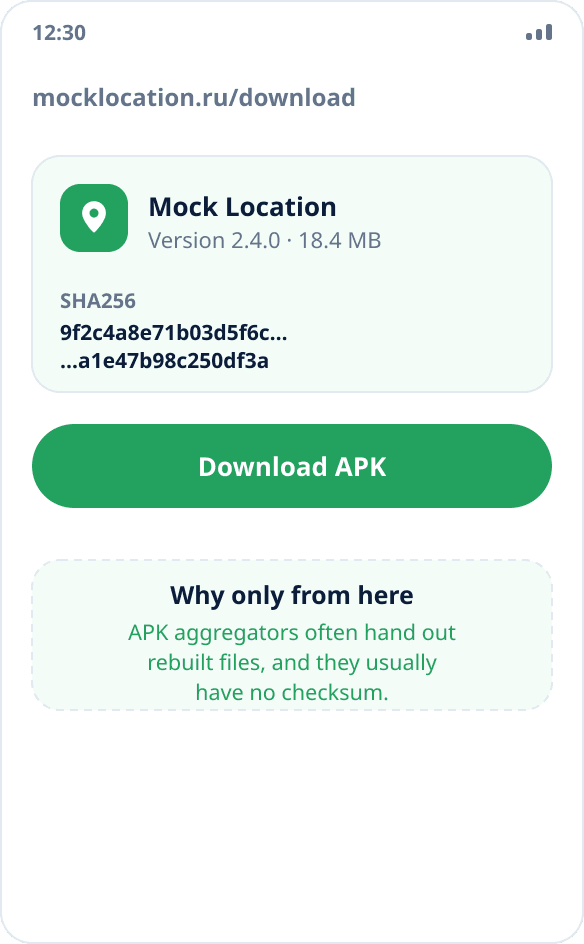
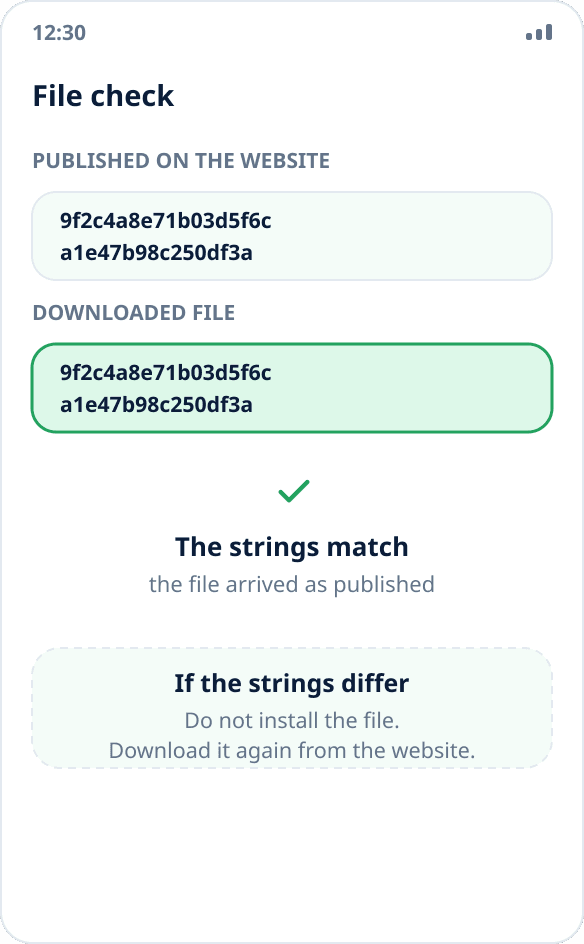
Check the SHA256 checksum
The download page lists the file's SHA256 hash. Calculate it for the downloaded APK with any file manager that has this feature and compare the strings. A match means the file arrived exactly as it was published; a mismatch is a reason not to install it and to download it again.
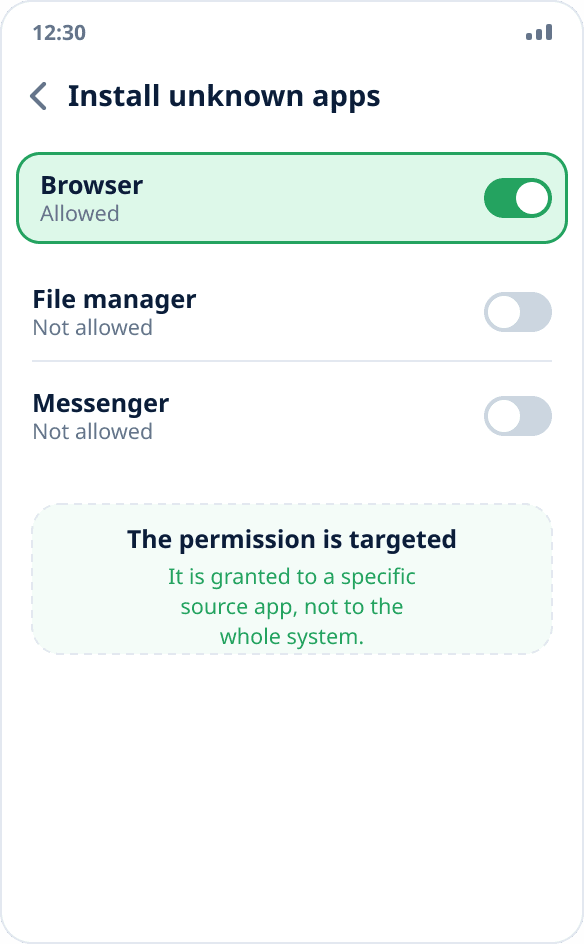
Allow installs from the source
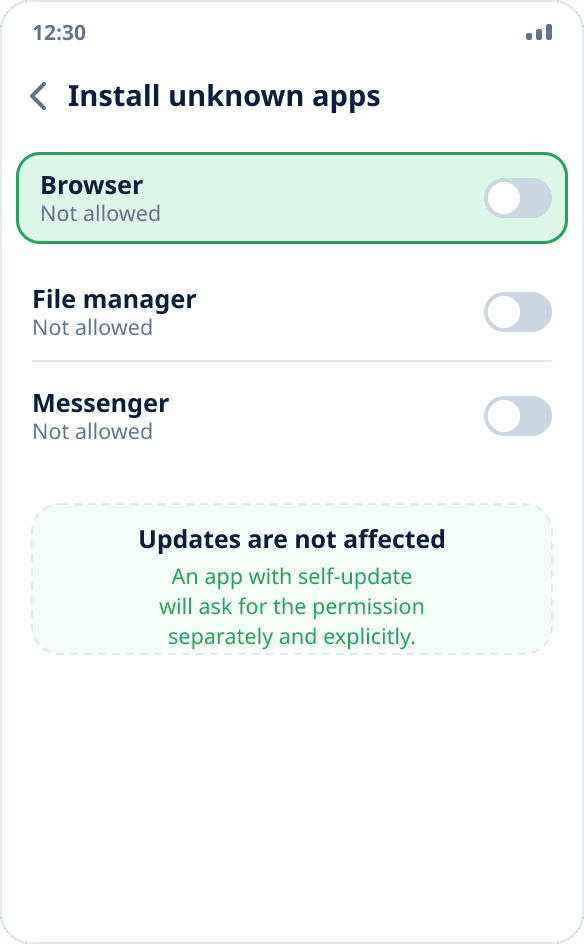
Open the downloaded file — Android shows a warning and offers to go to settings. Turn on “Allow from this source”. The permission is granted to a specific source app — the browser or file manager — not to the whole system.
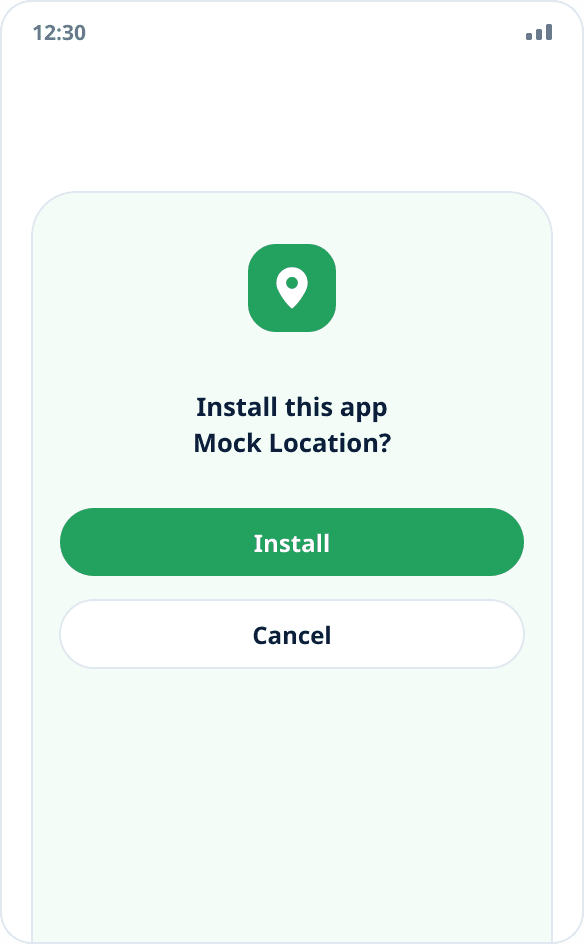
Install the app
Go back and confirm the installation. Android shows the warning that an app from an unknown source may be harmful for any APK outside a store — it is not the result of checking this particular file.
Revoke the permission if you no longer need it
After installing, you can turn off the install-from-source permission in the same place, in the source app's settings. This does not affect later updates: an app with a self-update feature will ask for the permission separately and explicitly.
Why the app signature matters
Every APK is signed with the developer's key. Android checks the signature on installation and will not let you install a file signed with a different key over the installed app — the attempt ends with an incompatible update error.
This is both protection and the reason for one practical limitation: the store build and the website build are signed with different keys, so one cannot replace the other without uninstalling the app. Data is not lost if you are signed in — places and history come back from sync.
Why an update does not erase data
Installing a new version over the old one is an update, not a reinstall: the system keeps the app's storage. Local places, history, settings and your account sign-in stay in place, and an active mock location is restored automatically.
Data is lost only when the app is completely uninstalled — and only local data: everything synced with the account is restored after you sign in.
What the Play Protect warning means
Play Protect may show a warning when installing any app outside the store — including a completely harmless one. It is a heuristic based partly on the fact of distribution outside Google Play, not a verdict on a particular file.
A meaningful check on your side is comparing the checksum with the one published on the official download page: it answers the question of whether this is the right file, not whether the store's heuristic likes it.