 Mock Location
Mock location on realme, OPPO and vivo
realme, OPPO and vivo phones are widespread, and all three have related firmware: ColorOS, realme UI and Funtouch OS behave similarly and are equally strict about background services. OnePlus belongs here too: OxygenOS has long been built on ColorOS, and everything below applies to its owners unchanged. Turning spoofing on is no harder on these phones than on any Android; making it survive fifteen minutes with the screen off is the task this guide is written for.
Find the build number
Settings → “About phone” → “Version” (on some skins this subsection is called “Version information”). Inside is the “Build number” item, which you need to tap seven times in a row. The system shows a countdown, asks for your PIN and then reports that developer mode is on.
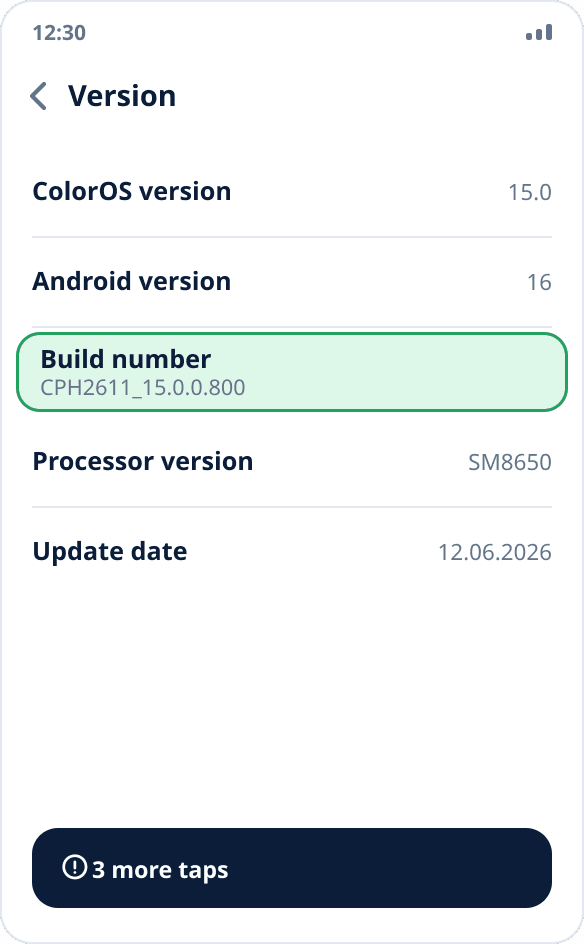
Open developer options
Settings → “Additional settings” → “Developer options”. On Funtouch OS the section is called “Developer options” and is located in “System management”. If you cannot find it, use the settings search: it also searches hidden sections.
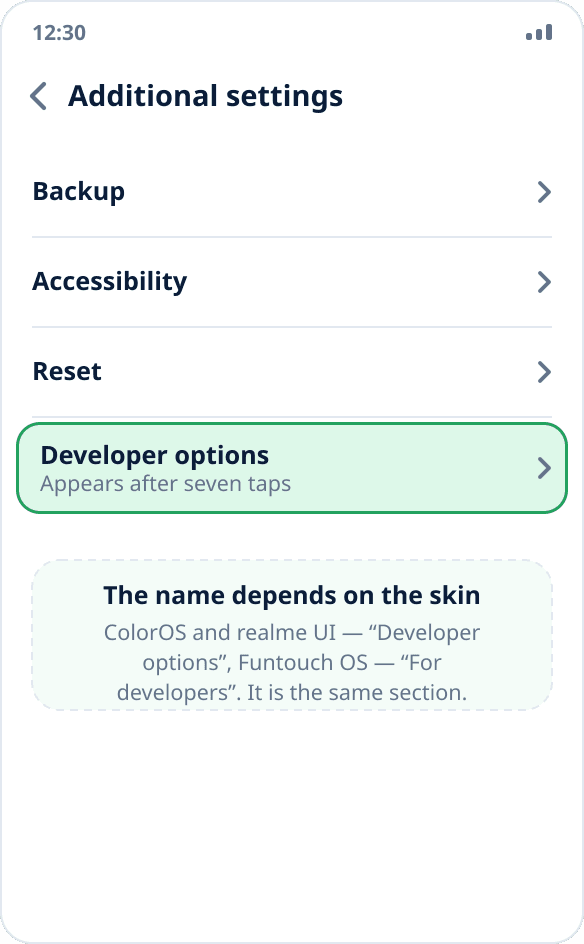
Select the mock location app
Inside the section find the “Select mock location app” item and select Mock Location. The app must be installed beforehand, otherwise the list will be empty: the system shows only apps that can act as a test provider.
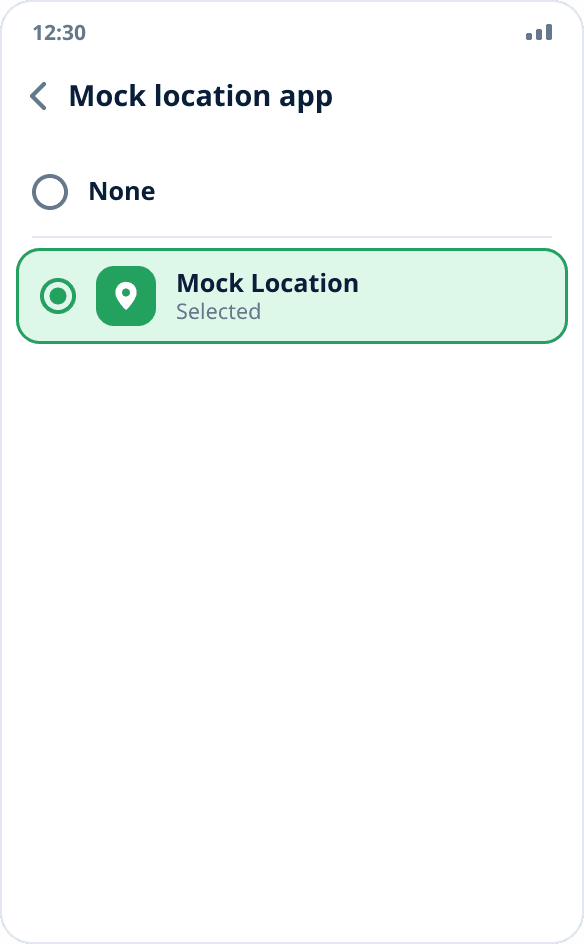
Allow autostart and background activity
Settings → “Apps” → “App management” → Mock Location → “Battery usage”. Turn on “Allow auto launch”, “Allow background activity” and “Allow launch by other apps”. This is the main step of the whole guide: without it ColorOS closes the background service a few minutes after you turn off the screen, and spoofing silently stops.
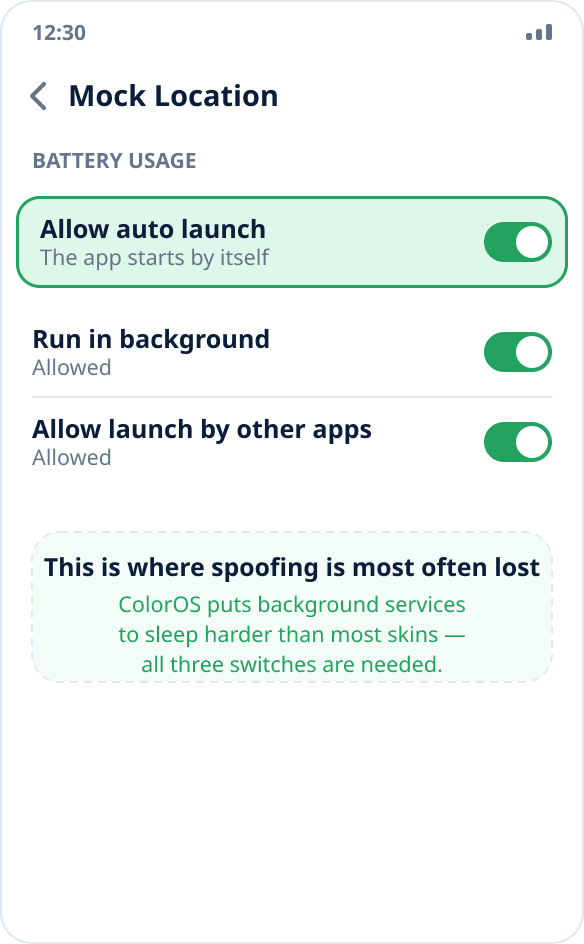
Turn off power optimization
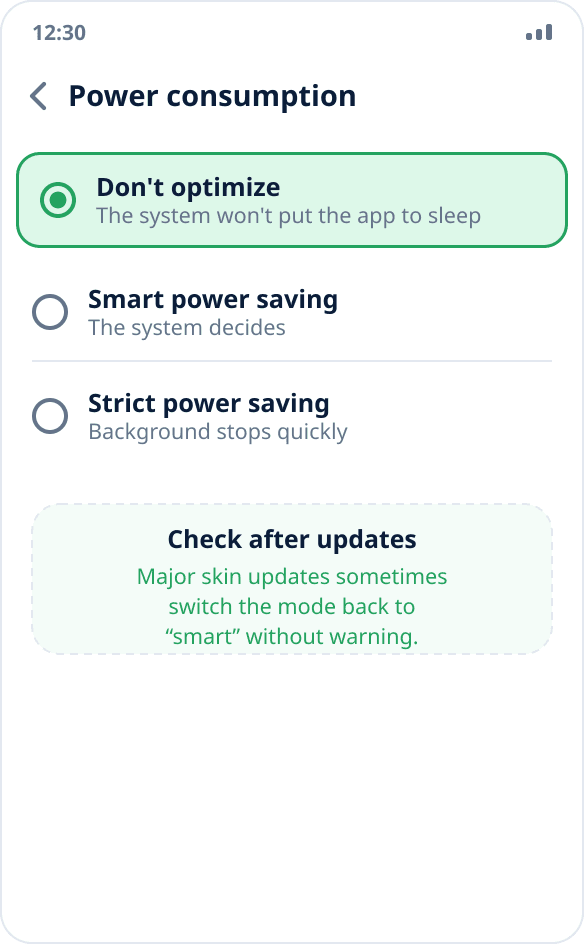
In the same “Battery usage” section (or Settings → “Battery” → “App power consumption”) choose “Don't optimize” for the app. Smart power saving leaves the firmware the right to put the service to sleep at its discretion — this is exactly what happens when spoofing “works only while you look at the screen”.
Check that spoofing holds
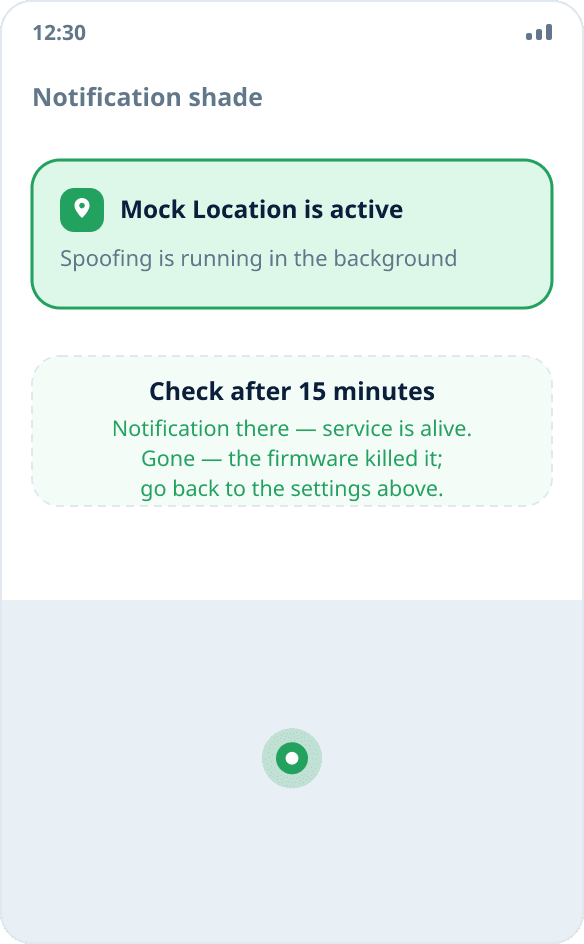
Start spoofing by tapping the map, lock the phone and come back to it in fifteen minutes. If the notification is still in the shade, the settings took effect. If it is gone, go back to steps 4 and 5: most often one of the switches stayed off. The full check procedure is in the guide how to make sure spoofing works.
Why spoofing drops more often on these skins
ColorOS and its related skins manage background processes more aggressively than stock Android: the system decides which services to keep in memory and by default treats a long-lived background service as a reason to save battery. For most apps this is unnoticeable, but spoofing stops entirely because of such saving — the service has to stay alive the whole time coordinates are being supplied.
Hence the rule: on realme, OPPO and vivo the background settings matter more than the procedure of turning spoofing on. Turning it on takes a minute; keeping it on takes three switches and the power consumption mode.
Item names differ between versions
ColorOS 13, 14 and 15, realme UI 4 and 5, Funtouch OS 13 and 14 and OxygenOS on OnePlus rearrange sections in almost every major update. What is stable is not the names but the meaning: somewhere in settings there is app autostart management, a background activity permission and a power consumption mode. Search for “auto launch”, “background” and “power” — the built-in settings search finds them even where a section has been renamed.
If your version does not have the “Allow launch by other apps” item, that is fine — it did not appear in every build; the other two are enough.
After restarting the phone
The mock location app selection is kept — you do not need to select it again. But spoofing itself does not resume automatically after a reboot unless the app has the “Allow all the time” location permission and permission to be launched by other apps: without them the system does not bring the service up by itself.
More about behavior after a reboot — in the answer to this question.
If there is no “Developer options” item at all
Check that the taps on the build number counted: on some skins the countdown is shown as a pop-up hint at the bottom of the screen, and it is easy to miss. After seven taps the system always asks for your PIN or pattern — if there was no prompt, the mode was not enabled.
On corporate devices managed through MDM, developer mode may be forbidden by policy. The app cannot work around this.