 Mock Location
How to turn on mock location on Android
Mock location is a built-in Android feature: the system lets one chosen app supply coordinates instead of the real ones. It was added for development and testing, works without root and takes a couple of minutes to turn on. Below is the whole path from finding the hidden settings section to checking that spoofing actually works.
Open “Developer options”
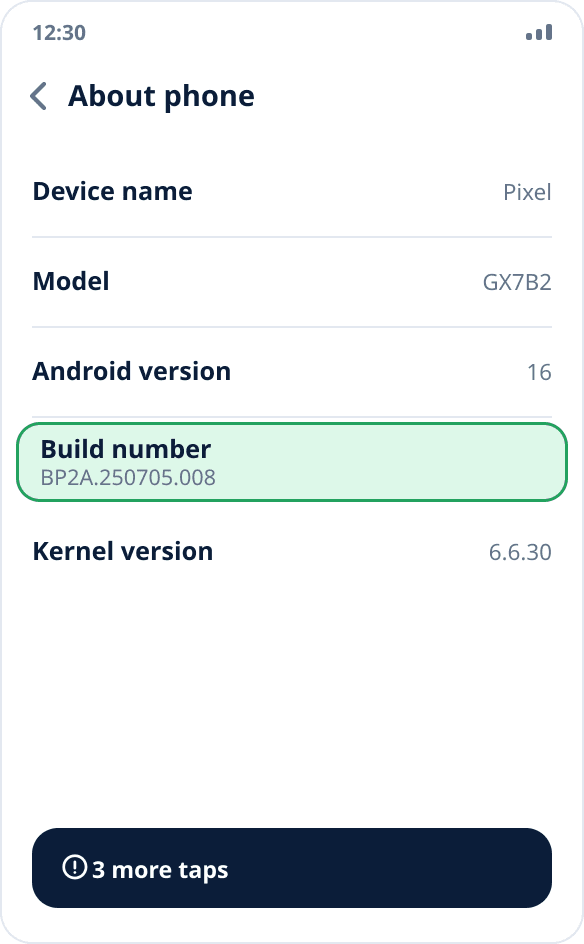
Settings → “About phone” → tap “Build number” seven times in a row. The system shows a countdown and then the message “You are now a developer”. On Xiaomi this item is called “MIUI version” or “HyperOS version”; on some skins it is hidden inside a “Software information” subsection — the idea is the same everywhere.
Install a spoofing app
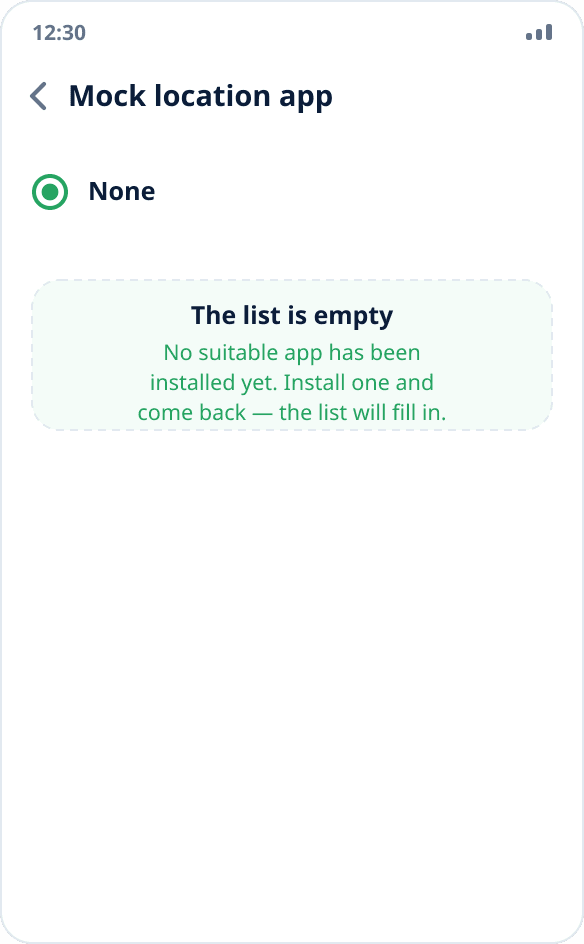
The app selection item stays empty until there is at least one suitable app on the system — the phone simply has nothing to offer in the list. Install a location spoofing app in advance: Mock Location can be downloaded as an APK from this website or installed from RuStore.
Find the “Select mock location app” item
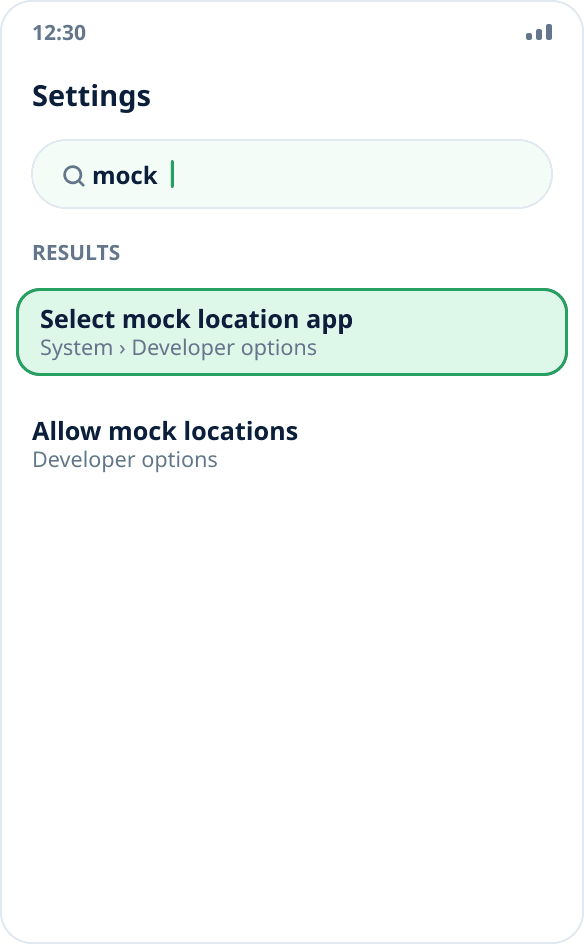
It is inside the developer options. On stock Android — Settings → System → Developer options; on Xiaomi — Settings → Additional settings → Developer options; on Samsung the section appears at the very bottom of the main settings list. The fastest way is the settings search: type “mock” and open the item it finds. Even simpler: tap the map in Mock Location — if the app is not yet selected in the system, it opens the right settings screen itself and tells you what to select there.
Select the app in the list
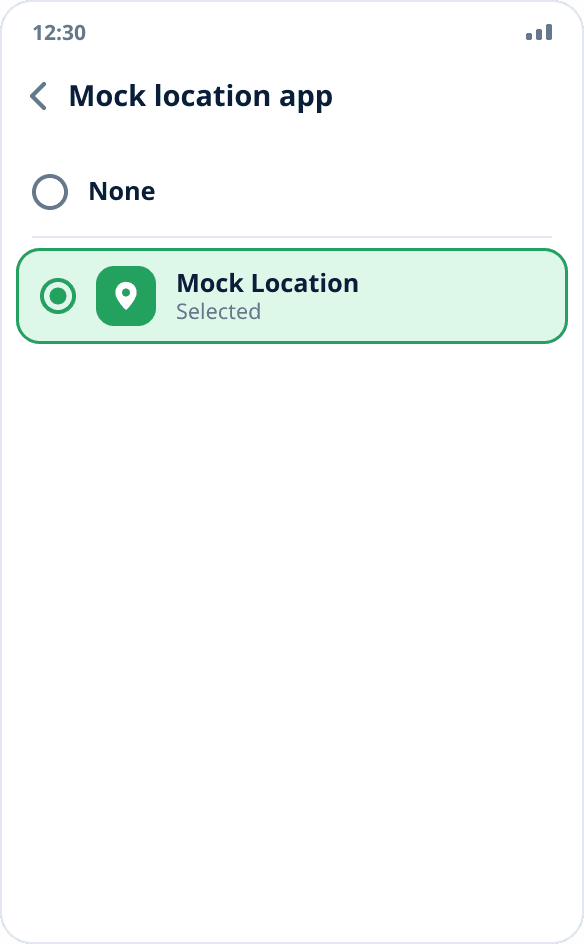
Tap the item and select Mock Location. The choice is made once: the system remembers it and keeps it until you change the app yourself or uninstall it. Only one app can supply coordinates at a time — this is a limitation of Android itself.
Grant the location permission
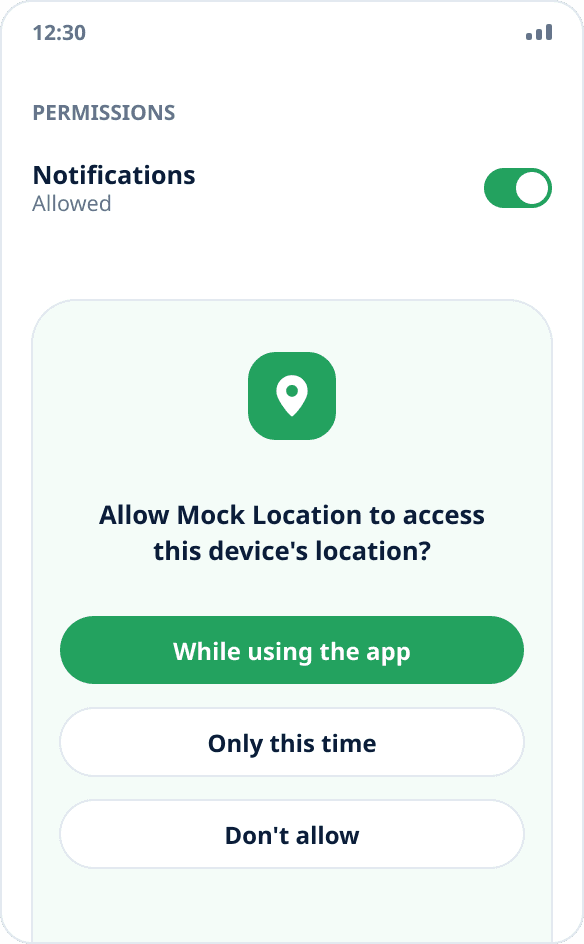
Open the app and allow location access. It is needed not for spoofing but for the opposite task: to show where you really are and return to your real point after stopping. Grant the notification permission too — without it Android will not run the background service that keeps spoofing on.
Pick a point and start spoofing
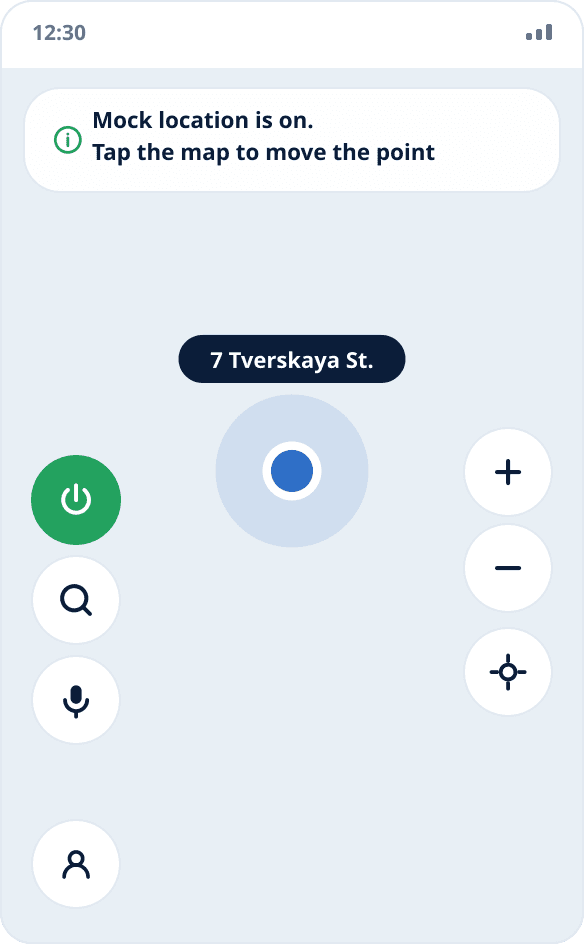
Tap the place you need on the map — spoofing starts right away, there is no separate start button. The same happens when you pick a point through address or place search. There are two signs: a persistent notification appears in the shade, and the round power button on the left turns green — it is also what turns spoofing off.
Check the result in another app
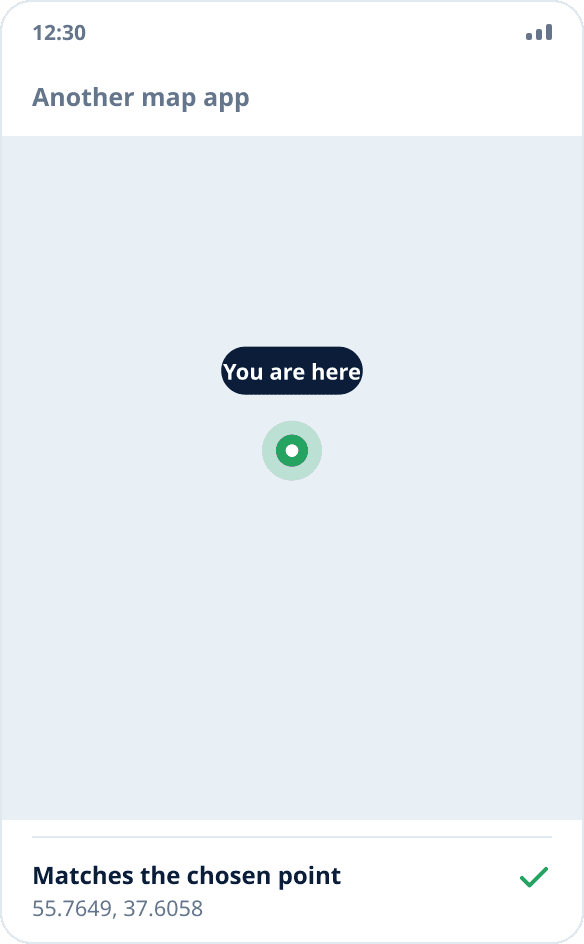
Open any other app with a map — for example, Yandex Maps — and see where it shows your position. Checking in the spoofing app itself is pointless: the chosen point is shown there in any case.
What to do if “Developer options” is missing
The section is hidden by default on every skin and appears only after seven taps on the build number. If it still does not show up after that, check two places: on some skins the section is not at the top level of settings but inside “System” or “Additional settings”, and almost everywhere it can be found by searching for “developer”.
On work phones with corporate management, developer mode may be blocked by the organization's policy — in that case it cannot be enabled without the administrator, and that is not a problem with the app.
Why the app list is empty
The system builds the list, and it includes only installed apps that declared the corresponding capability. An empty list means exactly one thing: a suitable app is not installed yet. Install it and return to settings — the item will fill in.
Spoofing is on, but an app shows the real point
Android marks every coordinate from a test provider with a “from a mock source” flag. Apps may read it and refuse to work with such data — banking, delivery and corporate tracking systems do exactly that. This check cannot be bypassed without modifying the firmware, and Mock Location does not do it — here is why.
The second reason is simpler: the app may have cached the last known point. Close it completely and open it again with spoofing active. The third — the app determines location by IP address rather than through the system; spoofing coordinates has no effect on that channel at all.
Spoofing works but drops after a while
That means the firmware killed the background service. Most often this happens on MIUI and HyperOS: turn on autostart for the app, remove battery restrictions and lock the app in recents. A detailed walkthrough is in the separate Xiaomi guide.