 Mock Location
How to change your location in a mobile browser
“Change my location in the browser” hides three different tasks: show a website different coordinates, look like a visitor from another country, and switch the region in search or on a marketplace. They are solved differently, and trying to handle all three in one way is the most common reason why “nothing changed”.
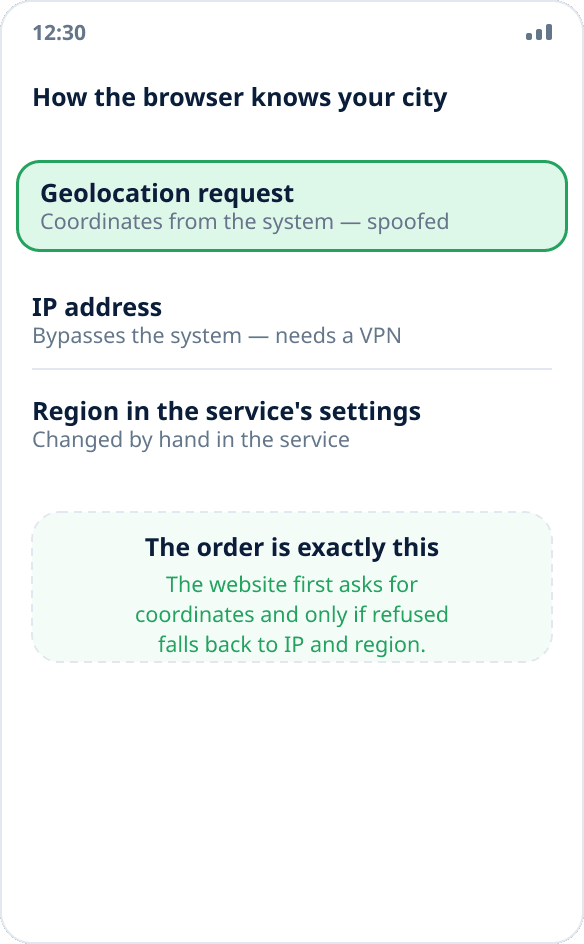
Three sources a browser learns your city from
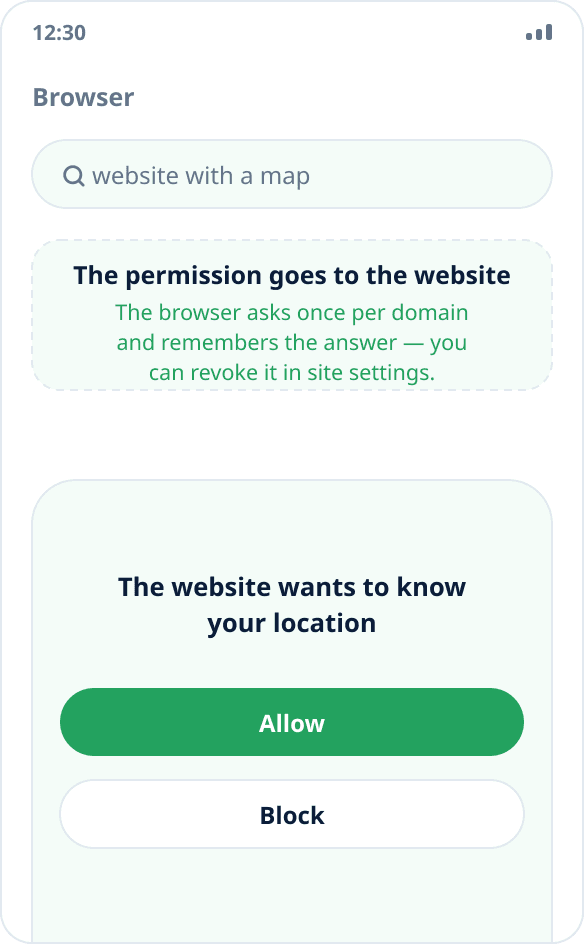
The first is asking the system for coordinates. The website calls the standard geolocation interface, the browser asks you for permission, and if you grant it, it gives the same location any app on the phone gets. This is the channel mock location replaces.
The second is the IP address. If permission is not granted or the website never asked for it, the region is determined by the network. Coordinate spoofing is powerless here; you need a VPN.
The third is the region chosen in the service itself. Search engines, marketplaces and delivery services keep the city in account settings or a cookie, and it has nothing to do with either coordinates or IP: it is changed in the service's own interface.
How to spoof coordinates for the browser on Android
There is no separate browser setting for this, and none is needed: the browser is a regular app that takes the location from the system. Just turn on mock location on the phone, and any website granted location permission will see the chosen point.
The procedure: enable developer mode and select the spoofing app (step by step), set a point on the map, open the website and allow it location access. If the website was already open, reload the tab — coordinates are requested when the page loads.
Checking what exactly the website sees
The quickest way to make sure is to open any location check page (searching for “check my location” finds them) and compare the coordinates shown with the chosen point. The browser is convenient precisely for checking: it does not keep the previous location between visits and does not show an old result by mistake.
If the coordinates are right but the city on the website is still the old one, the website takes the region not from geolocation but from its settings or the IP. A detailed walkthrough of the checks is in a separate guide.
Why it is different on a computer
On a desktop computer coordinates usually come not from satellites but from nearby Wi-Fi networks and the IP — there are no system-level spoofing apps there. Browsers do have a built-in tool, though: in Chrome and Chromium-based browsers, the developer panel (F12) → Sensors lets you set arbitrary coordinates for the current tab. It is an official feature for testing websites, works without extensions and requires nothing to install.
It is inconvenient for regular use — the panel must stay open — but perfect for checking how a website looks from another city.
When you need the service, not the browser
Search engines, maps and marketplaces almost always let you choose the city manually — in settings or in the page header. This is the most reliable way to see local results: it depends neither on coordinates nor on IP, and the service does not treat it as an attempt to deceive, because you are using its own setting.
If the task is “see prices and availability in another city”, start with this, and leave coordinate spoofing for cases where the service does not ask for the city and insists on determining it itself.
What spoofing in the browser will not do
It will not change your IP address or the country by it — that needs a VPN; the difference is explained in the article location spoofing or VPN.
It will not hide your time zone, system language and other signs by which a website can determine your region regardless of coordinates.
It will not help where a website reads the mock source flag: if this matters to the service, it will see the spoofing — here is why.