 Mock Location
Mock location on HONOR (MagicOS)
HONOR split from Huawei in 2020 and has since been an independent brand with its own MagicOS skin and Google services on board. Huawei guides only half apply to HONOR owners: the settings paths are similar, but some are named differently, and installing apps needs no workarounds — Google Play is there. Below is the procedure specifically for MagicOS.
Turn on developer mode
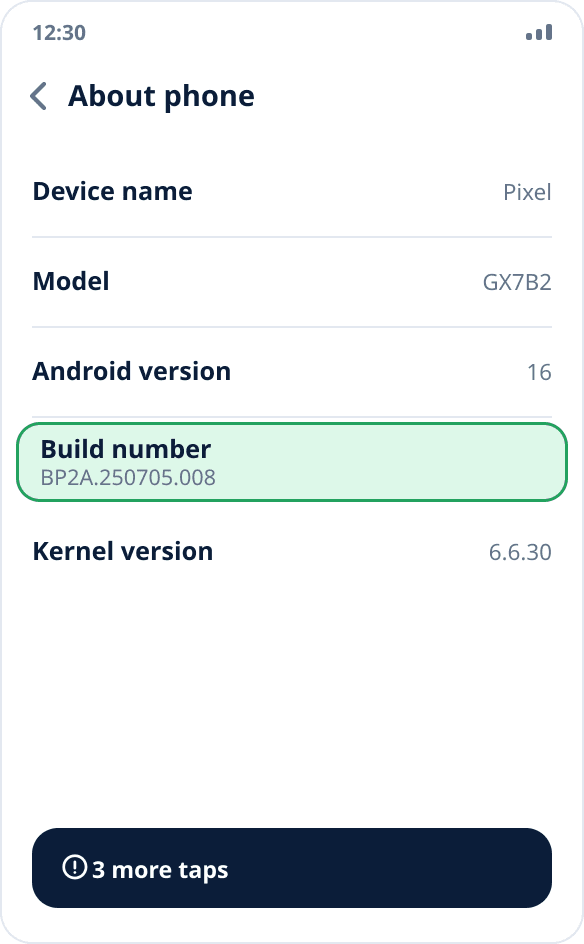
Settings → “About phone” → tap “Build number” seven times in a row. The system asks for your PIN and reports that developer mode is on. If there is no “Build number” item on the screen, it is hidden inside the “Version” subsection — depending on the MagicOS version it is either at the top level or one level deeper.
Open developer options
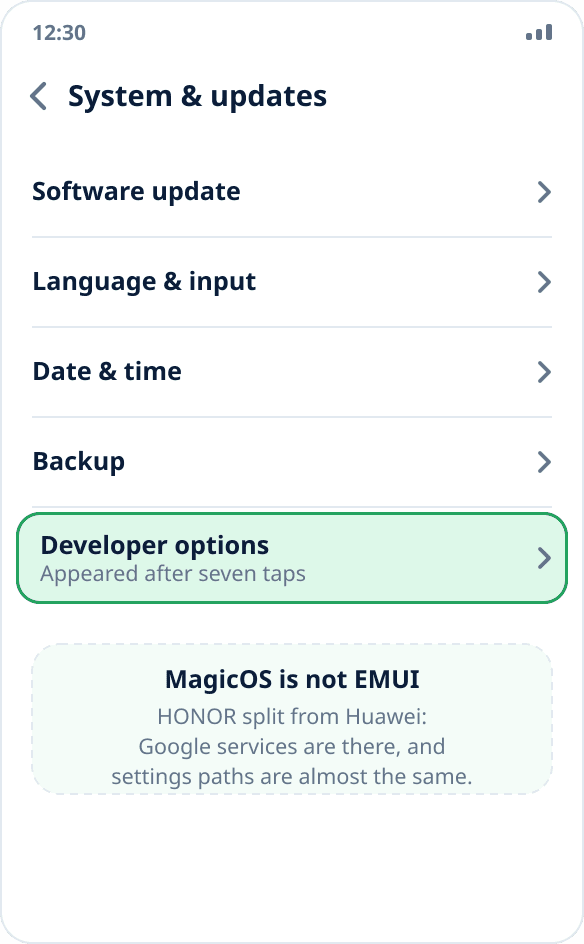
Settings → “System & updates” → “Developer options”. In MagicOS 8 and newer the section is sometimes in “Additional settings” — if you cannot find it, use the settings search and type “developer”.
Select the mock location app
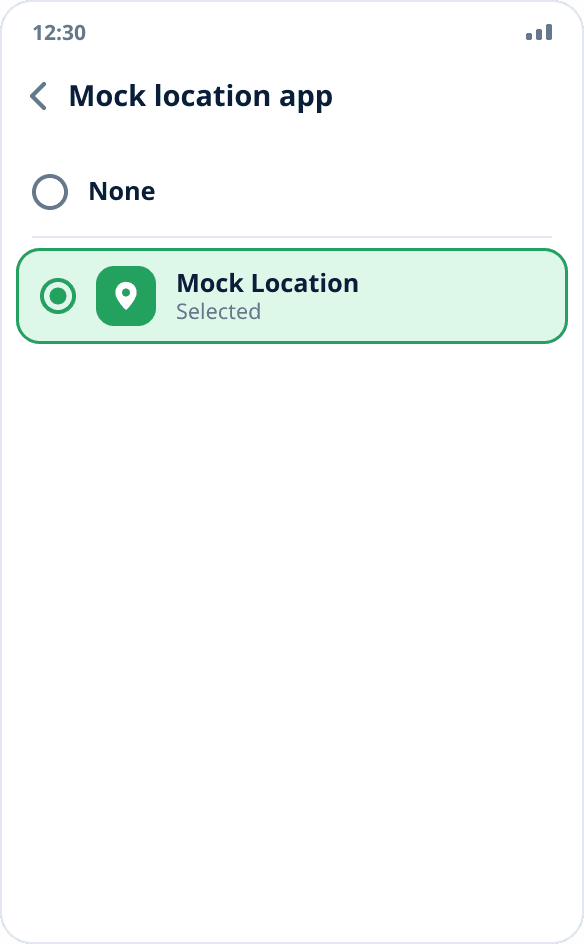
In developer options find the “Select mock location app” item and select Mock Location. The app must be installed beforehand — the system lists only apps that can act as a test location source. You can install it from RuStore or as an APK from the website.
Turn off automatic launch management
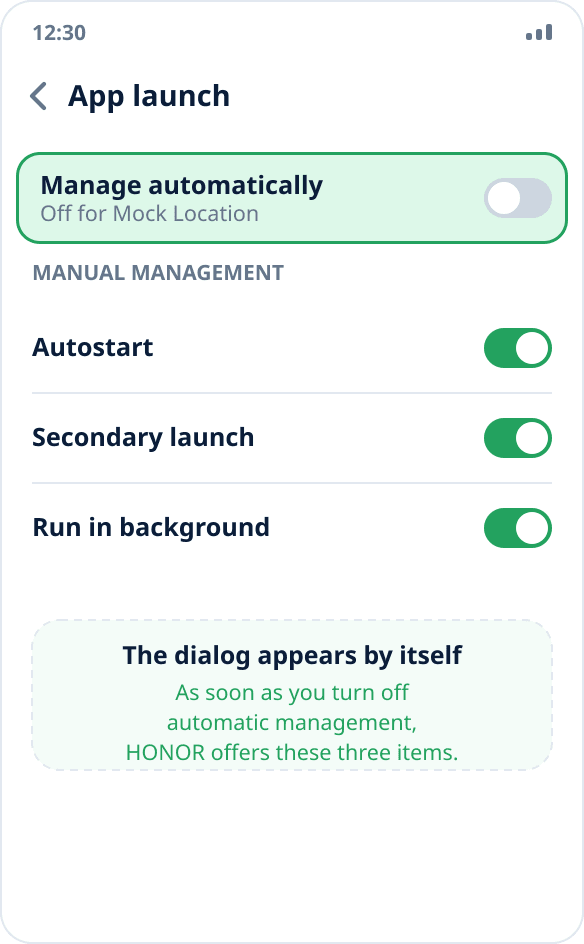
Settings → “Battery” → “App launch” → find Mock Location and turn off “Manage automatically” for it. MagicOS immediately offers three switches — “Auto-launch”, “Secondary launch” and “Run in background” — turn all three on. This is the key step: with automatic management the skin closes the background service at its discretion, and spoofing stops a few minutes after the screen locks.
Grant the location permission
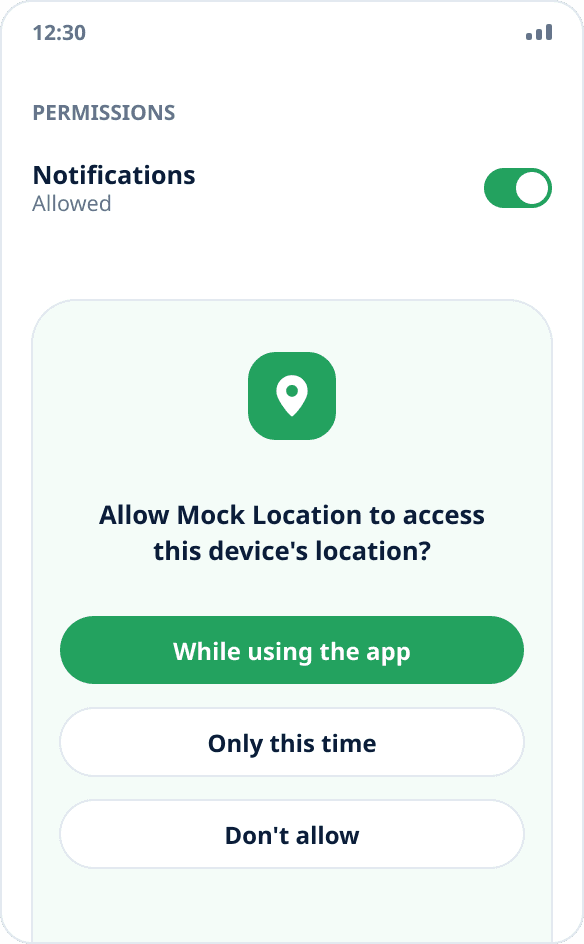
Open the app and allow location access. It is needed not for spoofing but for the opposite task: to show your real point and return to it after stopping. To restore spoofing after a phone reboot you need “Allow all the time”, not “Only while using the app”.
Check the result
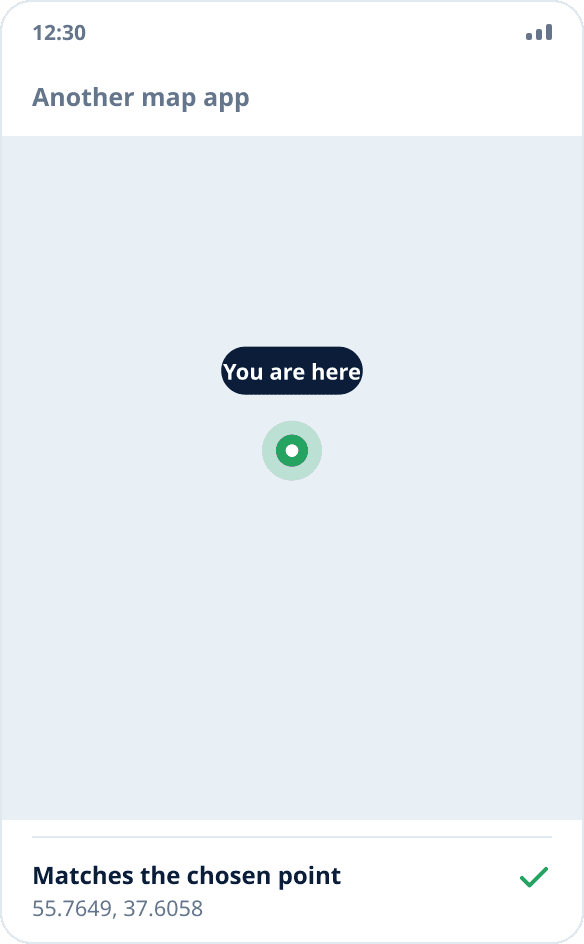
Start spoofing by tapping the map and open another map app — it should show the chosen point. After fifteen minutes with the screen locked, look at the shade: if the notification is there, the service is alive. The full check procedure is in a separate guide.
How HONOR differs from Huawei for this task
The main difference is practical: HONOR has Google services, so the app is installed from a store the usual way, and the walkthrough on installing without Google Play is not needed by HONOR owners. The spoofing mechanism is the same — it is part of Android, not a manufacturer add-on.
The shared heritage has not gone anywhere either: app launch management with three switches came from EMUI and works the same way. If you looked for a Huawei guide and could not find the item on your phone, the issue is most likely the section name, not a missing feature — the Huawei guide explains the same logic in more detail.
Item names in different MagicOS versions
MagicOS 7, 8 and 9 rearrange sections in almost every major update: “App launch” appears both in “Battery” and in “Apps”, and “Developer options” both in “System & updates” and in “Additional settings”. What is stable is not the paths but the meaning: somewhere there is app autostart management and somewhere there are developer options.
The built-in settings search finds both sections by “developer” and “launch” even where they are renamed.
If spoofing still stops
Check whether the app has gone back to automatic launch management: major skin updates sometimes reset this setting. The sign of a living service is the persistent notification in the shade; if the notification disappeared, the system has closed the service.
The second common cause on MagicOS is power saving mode, which turns on by itself when the battery is low: it limits background work for all apps at once. The other causes do not depend on the manufacturer and are covered separately — why spoofing turns off in the background.